PC-98 on macOS
31 January 2026
I'm writing this guide to outline the steps I took to get the VN Shizuku, recently translated by Her-Saki (vndb.org, ROMHacking.net), to work on my Mac. I'll also try to provide some general PC-98 resources that I came across along the way.
The first thing that you want to do is to find an emulator that works on your platform. From what I can tell, there are a few options:
- Neko Project II - Your standard NP2 emulator with releases for Mac OS X, last updated 2016-03-06. Said to work on Intel Macs running 10.5+, tested on my 10.14 system. I can't speak to performance on Apple Silicon, but I imagine Rosetta 2 can make it work.
- DOSBox-X - Cross-platform port of DOSBox, with more features (notably PC-98 emulation). Not personally tested.
- NP2kai - libretro core for PC-98 emulation. Not personally tested.
- SL9821 - A PC-9821 emulator? Not tested, page is wordy, all in japanese, not bothered putting through a translator. Recommended by the Emulation General Wiki.
We will proceed with Neko Project II, and download the latest version. Upon unzipping, we are greeted with a np2sdl2.app and a はじめにお読みください.txt (a README). The text in that README file is not Unicode-encoded, so in my experience it does not display properly when opening from the Finder. To select the correct encoding, you must first launch TextEdit.app, open the Open menu, click Options at the bottom of that window, and choose a Japanese encoding1.
Once you have that open, you can read the file yourself, or by using a machine translator, and go through its install instructions. For your convenience, I will summarize the steps in this article.
- Install the SDL2 Framework from the libSDL website - DON'T DO THIS. Keep reading.
- Place BIOS.ROM and FONT.ROM in the same folder as
np2sdl2.app.
Let's go step by step, from easiest to hardest.
Basic Setup
First things first, lets "install" np2sdl2.app to the Applications folder (/Applications), but place it in another folder first as to not clutter up the main folder with its helper files.
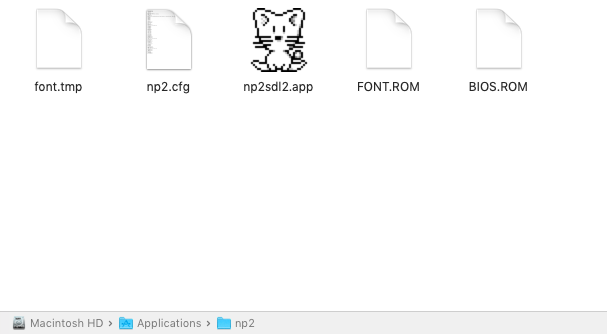
Notice the BIOS.ROM and FONT.ROM files. Download those from the links above and place them in the same folder as np2sdl2.app, per the above instructions. That was easy. You probably had already done that before I told you to the second time. Now for the hard part.
The Hard Part
Dylibs are the bane of my existence as a Mac user on outdated software. Compiling programs doesn't always work because sometimes some component expects a dynamic library that comes with a more modern OS, and I never could figure out how to get them to work. But I had to get it to work for this, so I spent hours poring over StackExchange answers until I finally figured it out for myself. It isn't the cleanest way, and I don't know how portable it is (probably not at all), but it gets the job done for me.
The Problem
NP2SDL2, like the name suggests, relies on the Simple DirectMedia Layer 2.0 library, which is highly cross-platform, regularly updated and has builds for Mac, thanks to both MacPorts and Homebrew, along with releases on their own website that include a version of their framework to be included into XCode projects. That does not help us as end-users, so don't bother downloading any DMG from the SDL website. Our final option is to build the library ourselves from the source code, as outlined in the official documentation.
I am pretty sure that we can use the builds from the previously-mentioned package managers, but locating the install location and linking the dylib from there added an extra layer of complexity that I couldn't manage, so I ended up just building it myself.
Building the library
To build libSDL2, you will need to follow the installation instructions here, while adding the extra steps for macOS outlined further down the document. You will hopefully already have some experience with shell environments, a version of git installed and a C compiler like gcc or cmake. To use MacPorts or Homebrew you already have a degree of shell environment experience anyway, so there isn't a real good way of getting around this part.
Linking the library to the executable
Once the library has hopefully been successfully built, now comes the task of telling np2sdl2.app where to find it.
Thanks to these two StackOverflow answers for their detailed explanations of how library linking using the Mac OS X install_name_tool utility works. I have a feeling that by following the first one correctly, you will be able to "magically" link a package manager's build of libSDL2 to the executable, without the headache that I'm about to explain.
If you followed the installation instructions without modifying the install location, you will be able to find the dylib at /usr/local/lib/libSDL2.dylib. Per the steps in the second StackOverflow answer, we should first see where the executable file is looking for its dependencies using the following command:
otool -L /Applications/np2/np2sdl2.app/Contents/MacOS/np2sdl2
Notice that we descended into the .app contents and ran the command against the executable itself and not the app.
You should see an output similar to:
otool -L /Applications/np2/np2sdl2.app/Contents/MacOS/np2sdl2
/Applications/np2/np2sdl2.app/Contents/MacOS/np2sdl2:
	/usr/lib/libz.1.dylib (compatibility version 1.0.0, current version 1.2.5)
	/System/Library/Frameworks/Cocoa.framework/Versions/A/Cocoa (compatibility version 1.0.0, current version 21.0.0)
	@rpath/SDL2.framework/Versions/A/SDL2 (compatibility version 1.0.0, current version 3.1.0)
	/System/Library/Frameworks/Foundation.framework/Versions/C/Foundation (compatibility version 300.0.0, current version 1153.20.0)
	/usr/lib/libobjc.A.dylib (compatibility version 1.0.0, current version 228.0.0)
	/usr/lib/libc++.1.dylib (compatibility version 1.0.0, current version 120.0.0)
	/usr/lib/libSystem.B.dylib (compatibility version 1.0.0, current version 1213.0.0)
	/System/Library/Frameworks/CoreFoundation.framework/Versions/A/CoreFoundation (compatibility version 150.0.0, current version 1153.18.0)
	/System/Library/Frameworks/IOKit.framework/Versions/A/IOKit (compatibility version 1.0.0, current version 275.0.0)
What matters to us is line 5, which mentions SDL2. It seems the program is looking in @rpath/SDL2.framework/Versions/A/SDL2 for the dylib, but this run-path–relative pathname (@rpath) doesn't actually resolve. We have to make the link ourselves.
This next part is really simple. Run the following line as root:
install_name_tool -change @rpath/SDL2.framework/Versions/A/SDL2 @executable_path/libSDL2.dylib /Applications/np2/np2sdl2.app/Contents/MacOS/np2sdl2
Then just:
cp /usr/local/lib/libSDL2.dylib /Applications/np2/np2sdl2.app/Contents/MacOS/
Finally, NP2 boots!
Playing games
We are almost ready to jump into playing our game!
Feel free to follow the suggestions on 46 OkuMen's guide for configuring your emulator. Tokugawa Corp also have an FAQ with a lot of detailed information on the various toggles for NP2 in particular. Finally, PC-98 Bot also has a good general guide with information on how to load software, control the mouse, along with game recommendations, English translation links and more.
To play Shizuku in English, we will need to patch the game file with the translation patch. I was able to get this working in Windows using this JS web-based ROM patcher, but for some reason I'm not able to get it to work on my Mac. The patch files include instructions, but they're designed for Windows and I wasn't able to get it to work on this machine. But here's the original, untranslated game working on Mac!
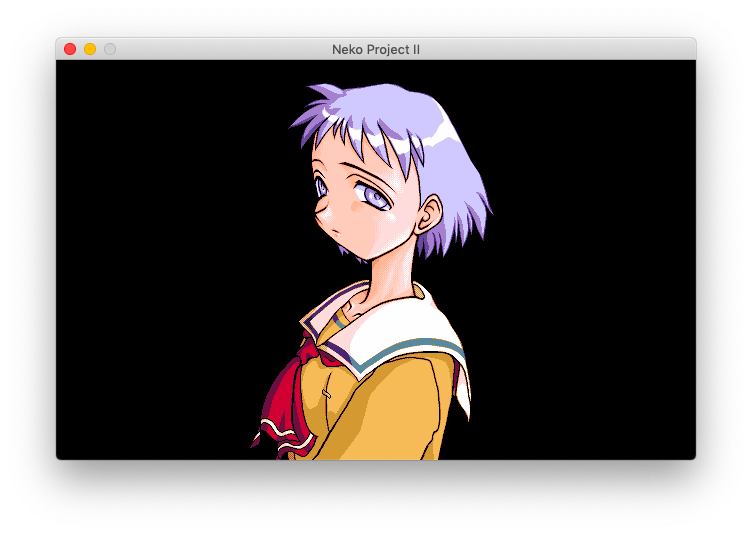
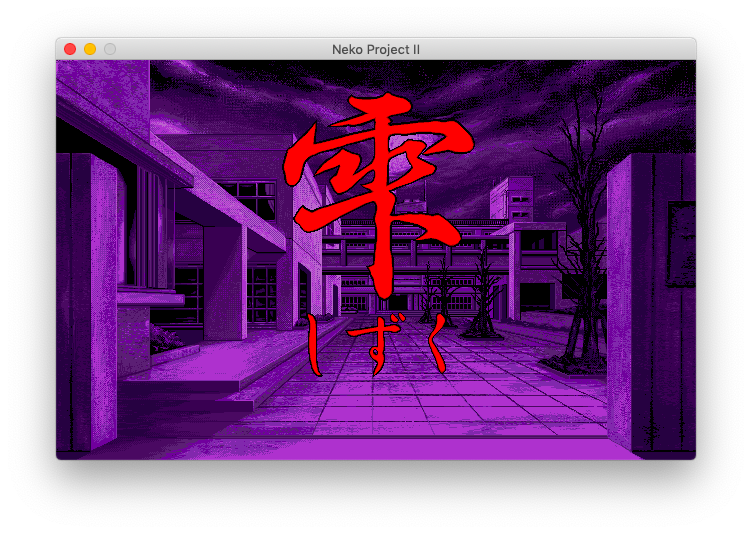
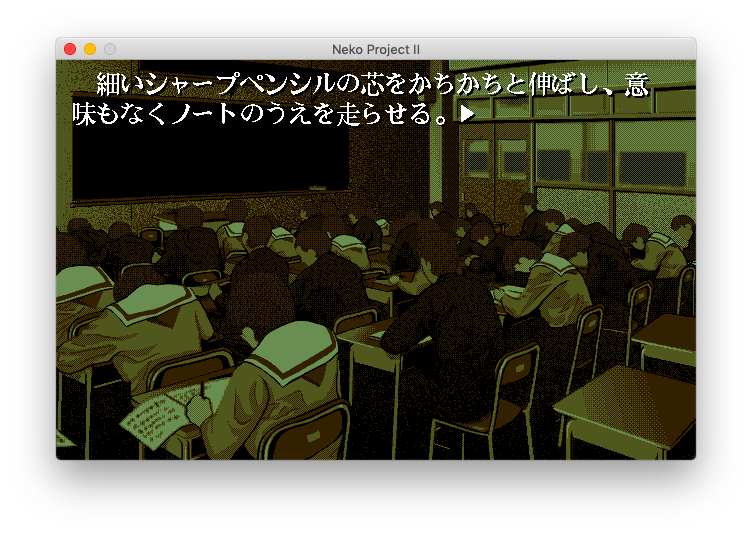
-
In my experience, out of Japanese (Mac OS), Japanese (Windows, DOS), Japanese (Shift JIS X 0213), Japanese (ISO 2022-JP) and Japanese (Shift JIS), only the ISO 2022-JP version does not work.↩